Appearance
Inventory
Purpose
Inventory is the showroom book. Use it to find units, switch gallery or list, filter by status, open a car, and add or edit when your role allows.
Where to open it
Portal path: /inventory
Nav: Inventory
Page title: Inventory
Who can use it
Everyone can view inventory. Administrator, Sales manager, and Sales rep can add or edit. Cost and margin stay hidden from Sales rep and Viewer.
Video tour
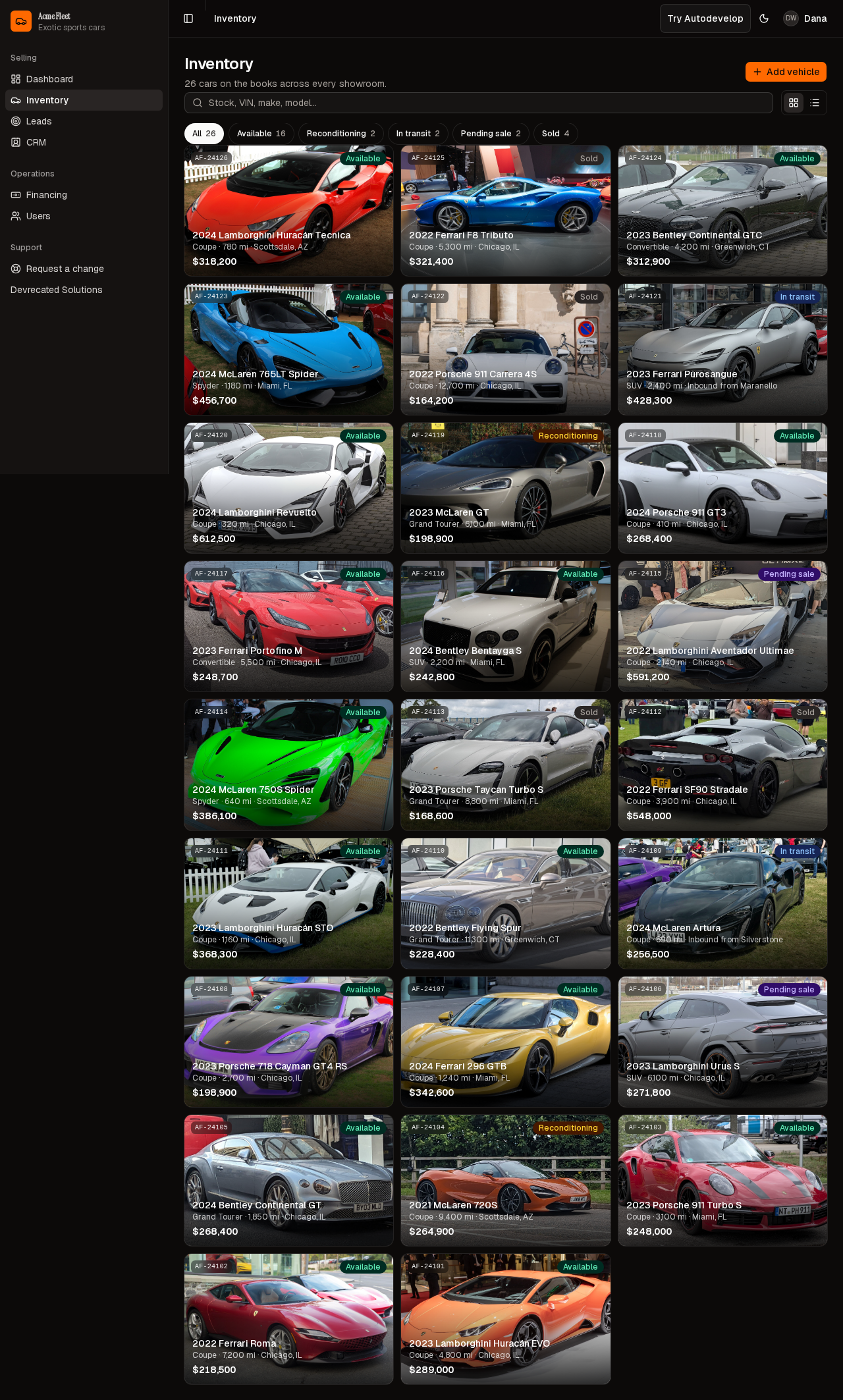
Gallery — search, status chips, and vehicle cards.
What to read next
| Guide | When you need it |
|---|---|
| Navigate & filter | Search, status chips, gallery vs list |
| Vehicle detail | Open a card for VIN, price, and status |
Step-by-step
- Open Inventory from the nav (
/inventory). - Confirm cars have loaded — a Lamborghini card, not skeletons.
- Search or apply a status chip when you need a subset.
- Toggle gallery vs list.
- Open a card for the detail sheet, or Add vehicle when you have edit permission.
Actions reference
| Action | Where in UI | Notes |
|---|---|---|
| Add vehicle | Header | Needs inventory.edit |
| Search | Toolbar | Stock, VIN, make, model |
| Gallery / List | Toolbar | Layout toggle |
| Status chips | Under search | All, Available, Reconditioning, In transit, Pending sale, Sold |
Tips
- Most “missing car” moments are an active status chip or a leftover search.
- Cost and margin only appear for roles with cost visibility.
Look out for
The page title is Inventory. As Administrator you should see Add vehicle and seeded stock — Lamborghini, Ferrari, Porsche, McLaren, and Bentley. Add vehicle alone is the header; it is on screen while the lot is still skeletons.