Appearance
Users
Purpose
Users is the roster: teammates, roles, status, and invite. Role on each row is what the sign-in picker is simulating.
Where to open it
Portal path: /users
Nav: Users
Page title: Users
Who can use it
Administrator and Sales manager can view. Only Administrator can invite or edit.
Video tour
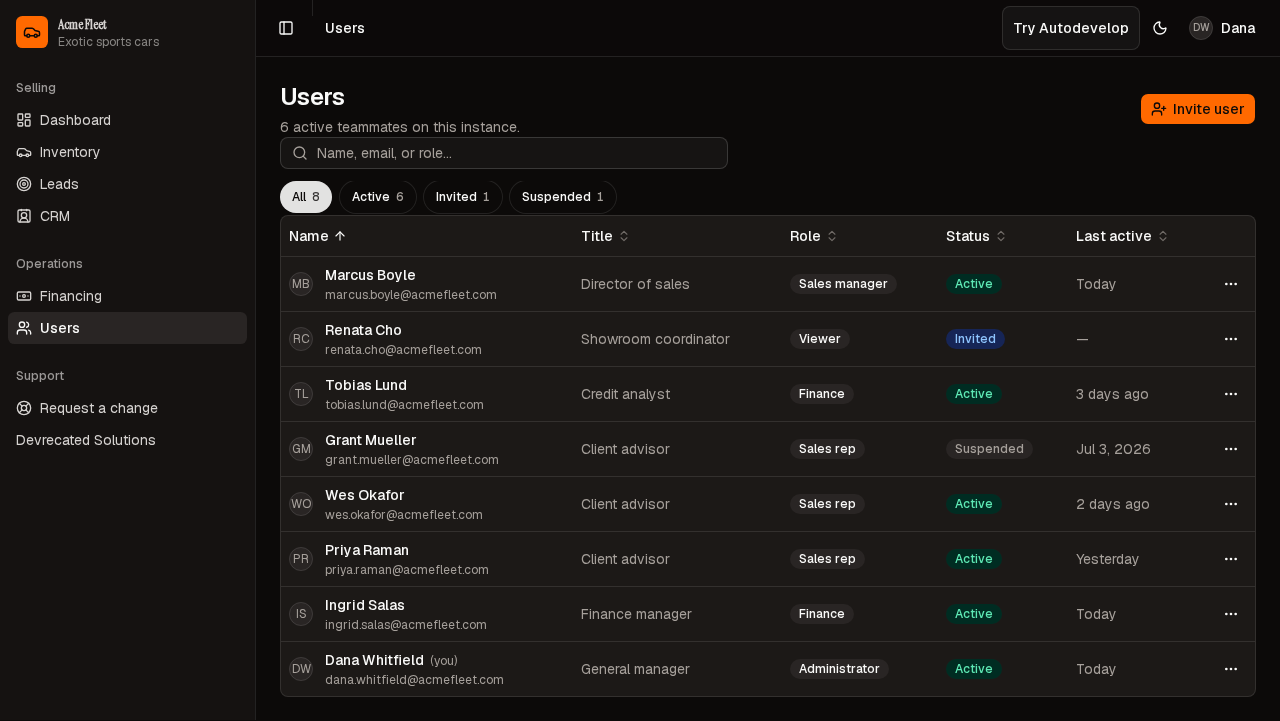
Roster — names, roles, Active filter.
Step-by-step
- Open Users (
/users). - Wait for the roster.
- Search or filter by Active / Invited / Suspended.
- Do not invite or delete on the public demo unless you mean to change the roster.
Actions reference
| Action | Where in UI | Notes |
|---|---|---|
| Search | Toolbar | Name, email, title, role |
| Status chips | Under search | All / Active / Invited / Suspended |
| Invite | Header | Administrator only |
Tips
- The sign-in picker is this roster. Changing a role here changes what that teammate can see.
Look out for
You should see Dana Whitfield as Administrator. Invite is Administrator-only.
See also
- Sign-in — The picker uses these people